
Runcam WiFiLink 1
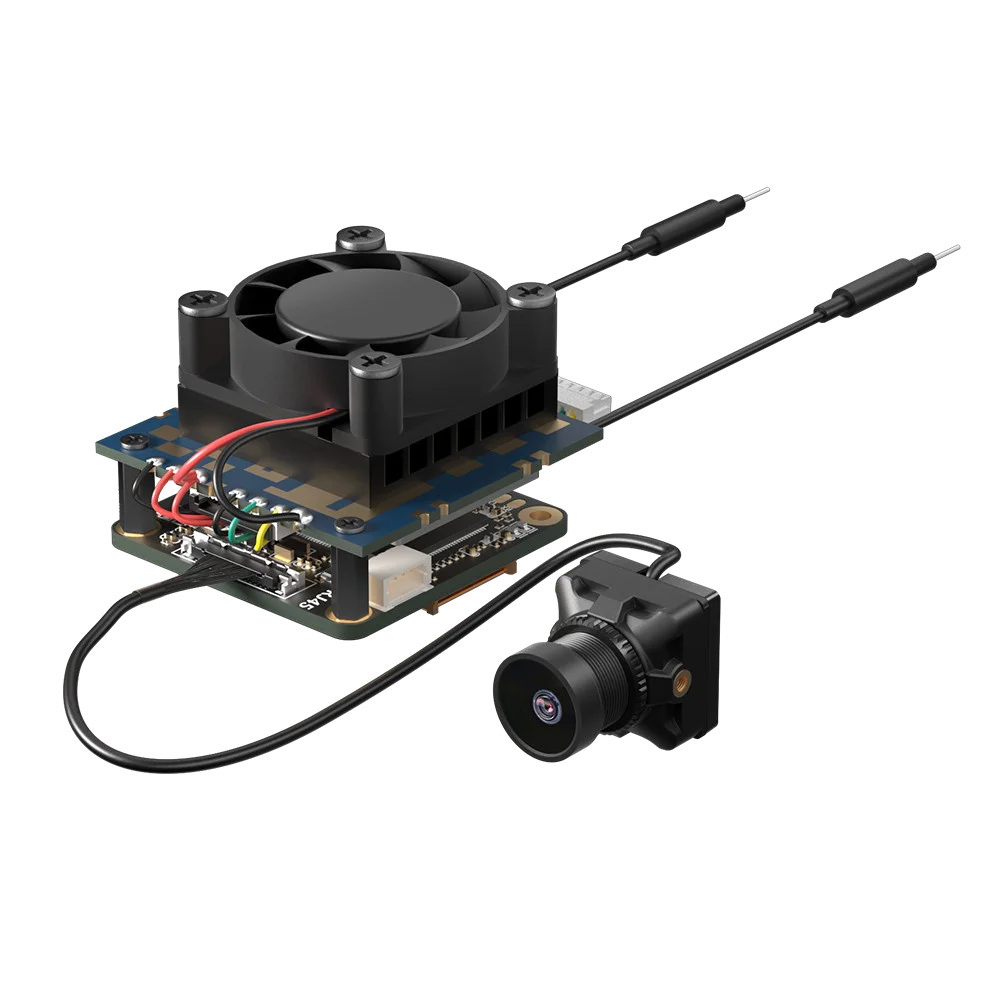
Specifications
| Parameter | Value |
|---|---|
| Image Sensor | IMX415 |
| Field of View | FOV 160° |
| Power Input | DC 9–30V (BEC recommended. Avoid direct LiPo connection) |
| Lens Module Size | 19×19 mm / M12 lens / MIPI cable 200/130 mm (MIPI cable is proprietary — contact manufacturer if damaged) |
| Mounting Hole Spacing | 25.5×25.5 mm |
| Board Size | 30×30 mm (338Q), 32×32 mm (WiFi) |
| Weight | 30 g |
| Antenna Connector | IPEX |
| PA Output | 29 dBm (800 mW) |
| WiFi Chip | BL-M8812EU2 (5 MHz, 10 MHz, 20 MHz) |
| UARTs | 1 |
| SoC | SigmaStar SSC338Q |
| Firmware | ssc338q_fpv_openipc_urllc_aio_nor.tgz |
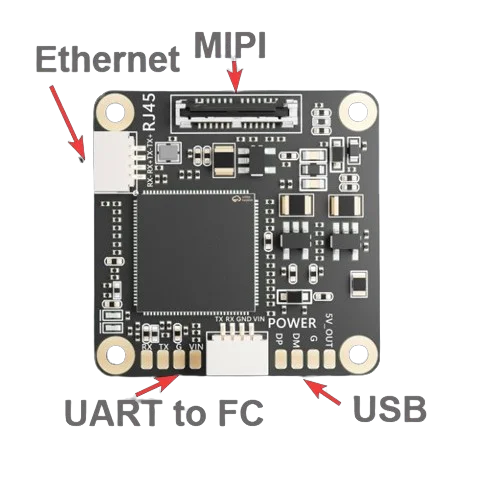
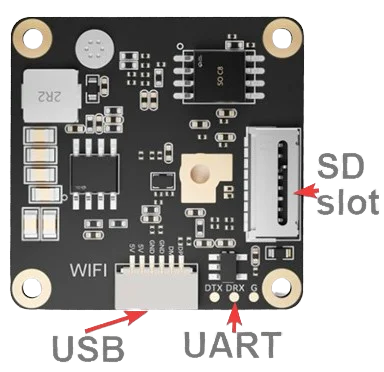
Board Layout
Motherboard (top)
Motherboard (bottom)
Basic Setup
For advanced configuration see Advanced Settings.
Required Components
- Flight controller with Betaflight, INAV or Ardupilot firmware
- Runcam WiFiLink 1 and the Pixelpilot app
- RTL8812AU Wi-Fi adapter (included with WiFiLink-G)
- USB-C OTG adapter (included with WiFiLink-G)
- Modern Android 13 or 14 smartphone (with powerful CPU for minimal latency)
- Internet connection
Hardware Preparation
- Attach the antennas to the Runcam.
- Connect the 4-pin cable to the UART on the flight controller designated for digital VTX (see image), or solder directly to the UART on the FC. Note: wire colors may only match on one end — verify GND to GND, VCC to VCC, etc.
- Insert a formatted microSD card into the Runcam slot (located on the bottom under the fan).
- Connect the included Ethernet cable to the device.
Getting the gs.key
- Insert an empty, formatted microSD card into the Runcam (contacts facing the board). You may need to disassemble the housing.
- On first boot the device will create
userandgs.keyfiles. Remove the card and copygs.keyto your VRX (Android, PC, etc.).
Connecting to Android GS
- Install the Pixelpilot app.
- Copy the
gs.keyfile to your smartphone. - Connect the RTL8812AU Wi-Fi adapter to your smartphone.
- Launch Pixelpilot when the pop-up appears.
- Tap ⚙️ (gear) and set:
- Channel: 161
- Bandwidth: 20
- Select WFB-NG → gs.key and choose the copied file.
- Power on the VTX.
If video does not appear within 30 seconds:
- Restart Pixelpilot
- Check the lens cap
- Verify the
gs.keyfile - Restart both the smartphone and the VTX
Summary
After basic setup you will have access to an affordable digital FPV system. OSD is displayed by default on the AIR Unit — to configure OSD on the VRX see OSD Configuration. For the official manufacturer guide see Runcam documentation.