
APFPV Firmware — Beginner's Guide
APFPV stands for "Access Point FPV" — a simple way to get video from your drone to a phone, tablet or computer over ordinary Wi-Fi. Imagine your drone creating its own Wi-Fi network that you connect to in order to watch the video in real time.
What is APFPV?
The APFPV firmware by the OpenIPC team creates a direct Wi-Fi connection between your drone's video transmitter (VTX) and the ground station. Instead of complex networks, the drone simply works as a Wi-Fi router that you connect to directly.
This is not a revolutionary technology, but a solution built for simplicity and accessibility, especially for those who find other FPV systems too complicated.
Why choose APFPV?
Ideal for beginners:
- No complex setup
- Works with any Wi-Fi device
- No special ground equipment required
- Simple web interface in the browser
- The ground station can be any Wi-Fi device!
Important limitations:
- Latency 40–70 ms (not suitable for racing). Sometimes as low as 35 ms
- Depends on distance and interference
What do you need?
For the drone (VTX):
- An OpenIPC-compatible camera or board
- A Wi-Fi chip (RTL8812AU, RTL8733BU, RTL8812EU are the most popular)
For viewing (ground station):
- Android: the PixelPilot app (recommended)
- Computer: any with Wi-Fi and a browser
- Professional: external Wi-Fi equipment (TP-Link, Ubiquiti)
- Any device: that supports RTP streams
Step-by-step setup
Step 1: Installing the APFPV firmware
There are three ways to install the APFPV firmware on the drone. The internet method is much simpler if the drone can connect to Wi-Fi, or you can use the Configurator.
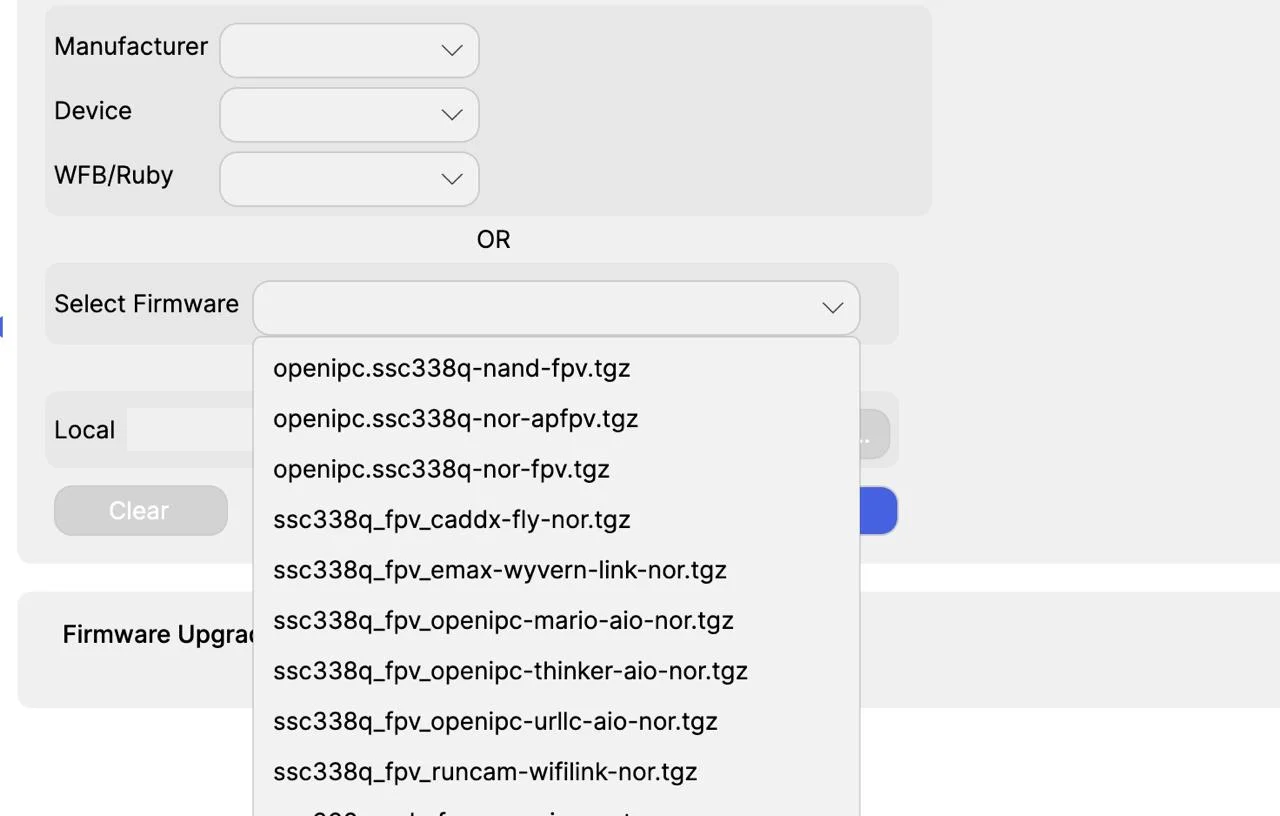
Easy installation over the Internet (Recommended)
Step 1: Connect the drone to the Internet
Physical connection:
- Connect the drone to your computer via Ethernet
- Power on the drone
- Wait for it to fully boot (1–2 minutes)
Step 2: How to connect to the drone via SSH
On Windows:
- Install PuTTY
- Open PuTTY
- In the "Host Name" field, enter the drone's IP
- Port: 22
- Connection type: SSH
- Click "Open"
- Log in with login:
root, password:12345
Tip
Enter the password when prompted
Find the drone's IP:
- Check the list of connected devices on your router
- Try network scanner apps on your phone
Step 3: One-command firmware installation
After connecting via SSH and with Internet access:
First do a full reset with the command - firstboot, and wait for the camera to perform a full reset
Then enter the command
sysupgrade -k -r -n --url=https://github.com/OpenIPC/builder/releases/download/latest/openipc.ssc338q-nor-apfpv.tgzPress Enter and wait for the reboot (5–10 min)
Note
Unplug the Ethernet cable for the stream to work properly. And reboot the AIR Unit.
By default the drone's Wi-Fi operates on the 2.4 GHz frequency.
Switch to 5.8 GHz
bash fw_setenv wlanfreq 5805
Check whether the Wi-Fi access point is working and on which frequency
bash iw dev wlan0 infobash fw_printenv | grep wlan
Setting the maximum power
fw_setenv wlanpwr 3000
Login / password
Openipc / 12345678
Method 2: Manual installation (without Internet)
Step 1: Download the firmware
- Go to: https://github.com/OpenIPC/builder/releases/download/latest/openipc.ssc338q-nor-apfpv.tgz
- Download the archive
- Unpack it — you'll get:
uImage.ssc338qrootfs.squashfs.ssc338q
Step 2: Copy the files to the drone
WinSCP (Windows):
- Install WinSCP
- Protocol: SCP
- Host: drone's IP
- Login: root, password: 12345
- Log in and upload the files to
/tmp
On Mac/Linux:
scp uImage.ssc338q root@[drone-IP]:/tmp/
scp rootfs.squashfs.ssc338q root@[drone-IP]:/tmp/Step 3: Installation
SSH into the drone:
sysupgrade -z -n --kernel=/tmp/uImage.ssc338q --rootfs=/tmp/rootfs.squashfs.ssc338qConnecting to the drone
- Connect to the OpenIPC Wi-Fi network
- Password: 12345678
- Drone IP:
192.168.0.1
Watching the video
On Android:
- Open PixelPilot — the video appears automatically
In a browser:
- Enter:
http://192.168.0.1
On Linux (GStreamer):
gst-launch-1.0 udpsrc port=5600 ! application/x-rtp ! rtph265depay ! avdec_h265 ! fpsdisplaysink sync=falseOther features and tips
Other devices:
Use any app that supports RTP streams over UDP on port 5600
Configuring the Wi-Fi network
To change the Wi-Fi name and password:
Connect to the drone via UART or SSH and enter:
fw_setenv wlanssid Drone
fw_setenv wlanpass openipcfpvTip
Instead of "Drone" enter your desired network name, and instead of "openipcfpv" — your password. Reboot the drone.
How the system works
Think of it like this:
- Your drone = Wi-Fi router (192.168.0.1)
- Ground station = Connected device (192.168.0.10)
- Video stream = Data transmitted from the drone
- Web interface = Control panel at
http://192.168.0.1
Supported hardware
Wi-Fi chips (on the drone):
- RTL8812AU (powerful, 20 and 40mhz)
- RTL8733BU (compact USB adapter)
- RTL8812EU (powerful, 20mhz)
Ground station:
- Any smartphone or tablet
- A computer with Wi-Fi
- Professional external Wi-Fi equipment
- FPV goggles with Wi-Fi support
- Any Wi-Fi device!
FAQ
What is the video latency?
Usually 40–70 ms. Depends on:
- Distance
- Interference
- Receiver device power
- Video quality settings
Can I use professional Wi-Fi equipment? Yes! You can use:
- TP-Link with external antennas
- Ubiquiti equipment
- Other commercial Wi-Fi with good antennas
What is the range?
- Smartphone: 50–200 m
- A good Wi-Fi adapter: 200–500 m
- Professional equipment: over 1 km
Troubleshooting
Can't see the "OpenIPC" network
- Check the power and firmware
- Wait 1–2 min after startup
- Reboot the drone
- Move closer
There is a connection, but no video
- Enter
http://192.168.0.1in the browser - Check PixelPilot (Android)
- Make sure you are connected to the correct network
Can't install it?
Run these commands and provide the name of the AIR Unit:
fw_printenv sensor
ipcinfo -cs
#
iw dev wlan0 info
cat /tmp/wpa_supplicant.conf
fw_printenv | grep wlan
ip a
lsusb
ps
iw list ; grep -e 'GITHUB_VERSION' /etc/os-releaseFeedback
Copy the command output from the terminal and send it to [email protected]
Poor video quality
- Reduce the distance
- Avoid interference
- Change location
- Adjust the quality in the WebUI
Tips for better performance
- Use 5 GHz if possible
- Keep line of sight
- Use good antennas
- Test everything on the ground
Why APFPV is great
Unlike complex systems (WFB-NG, RubyFPV), APFPV:
- Requires no special equipment
- Works with any Wi-Fi
- Has a simple point-to-point connection
- Offers a web interface
- Supports both beginners and professionals
APFPV is the simplicity of FPV for everyone. From first steps to serious experiments.