
Emax Wyvern Link VRX
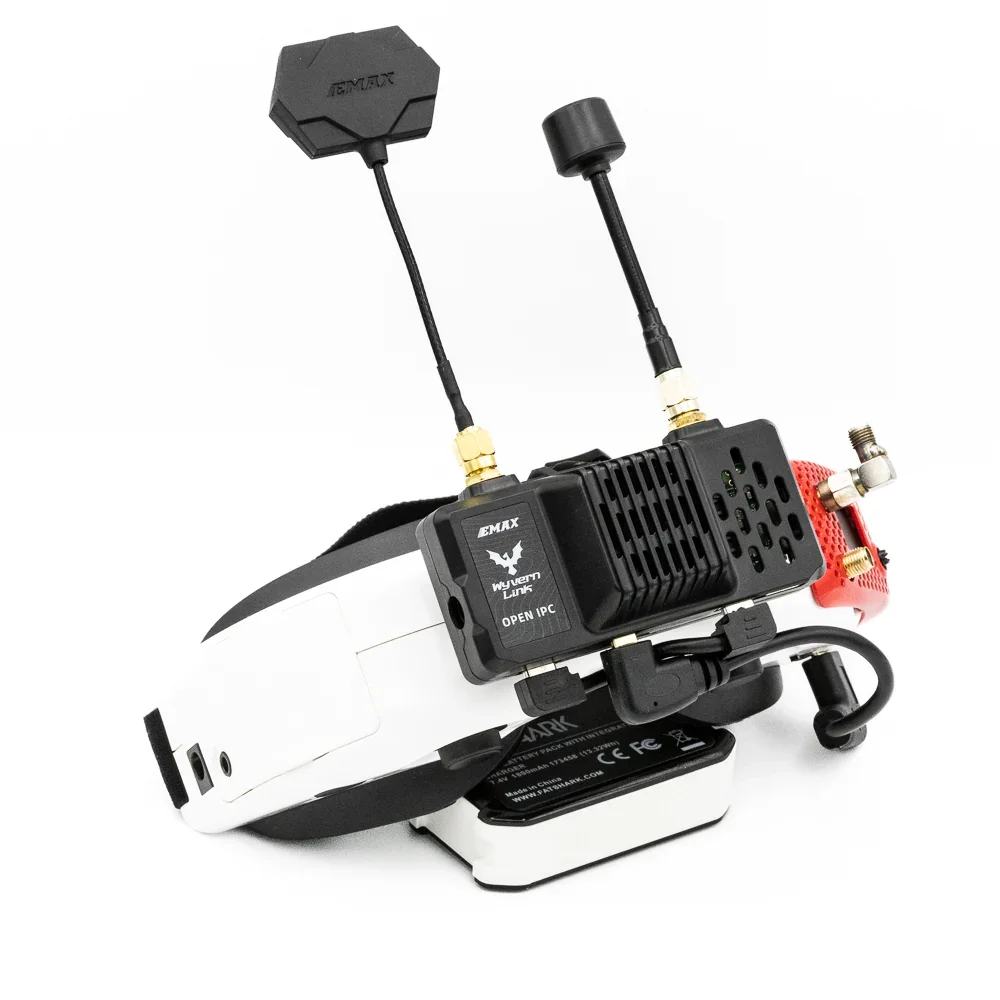
Specifications
| SOC board | Radxa ZERO 3W with 32GB eMMC |
| WiFi chip | RTL8812AF1 (5MHz, 10MHz, 20MHz, 40Mhz) |
| Hole spacing | 21mm × 21mm (Fatshark, Skyzone standard) |
| Size | 88mm (width) × 55.5mm (height) × 40.5mm (depth) |
| Weight | 101.2g (full kit) / 87.7g (with antenna) / 71.6g (without antenna) |
| Antennas | SMA connector (kit: LHCP Omni + Patch) |
| Factory firmware | SBC v1.9.6 (v1.9.9?) |
| Bundled cables | Short USB, split Y power cable, micro-HDMI to mini HDMI |
Boards
RADXA ZERO 3W
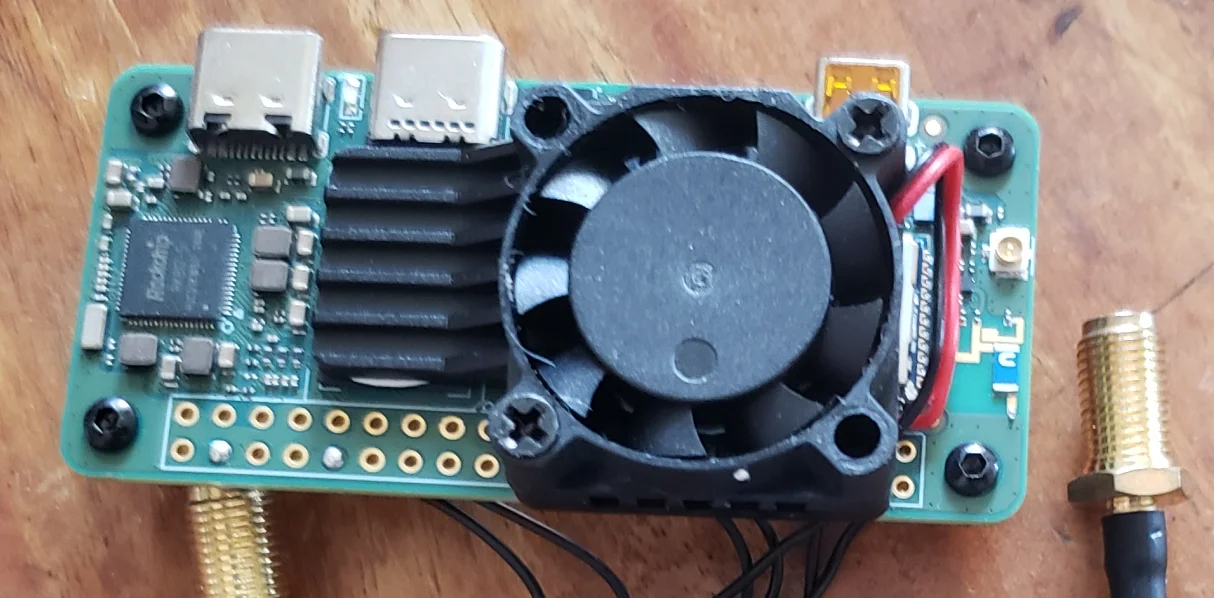
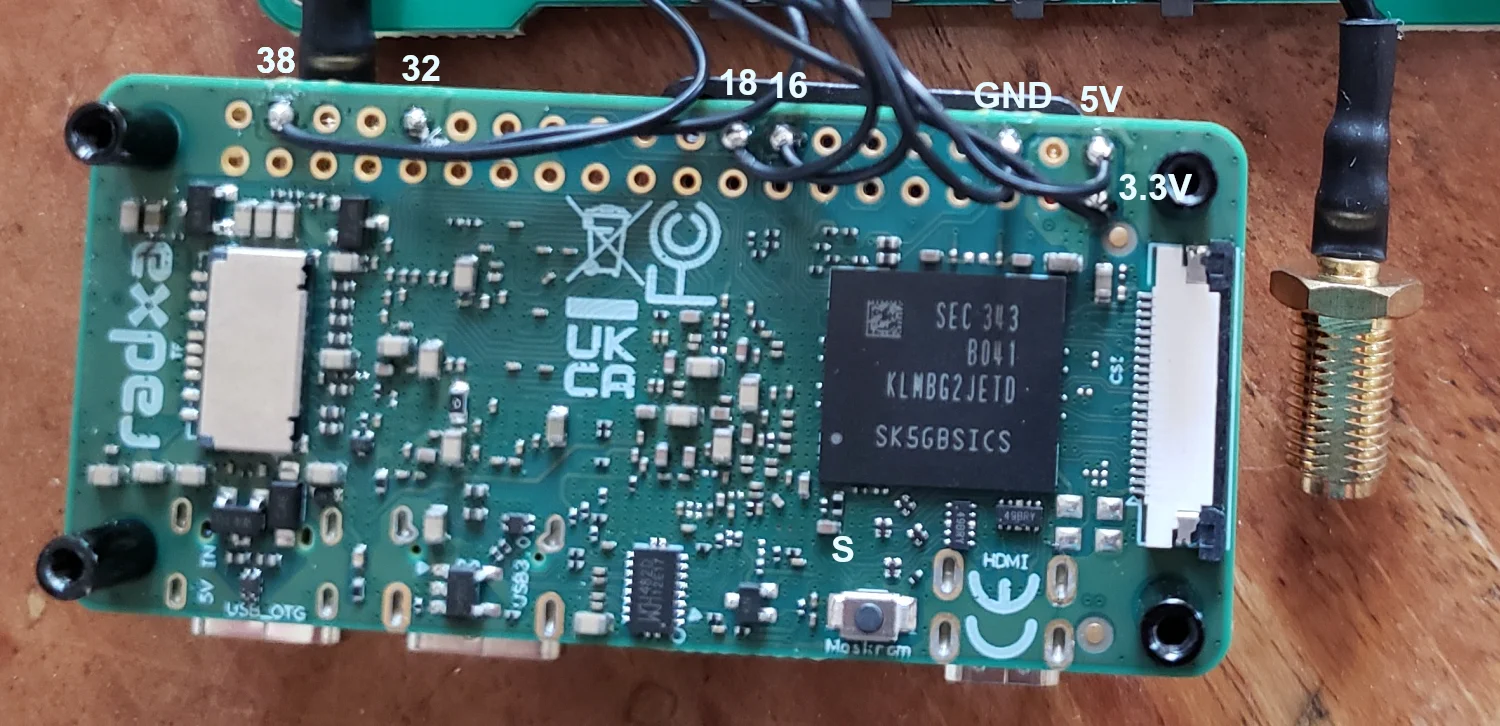
eMMC - Samsung KLMBG2JETD-B041 32GB
Emax custom power, WiFi and button board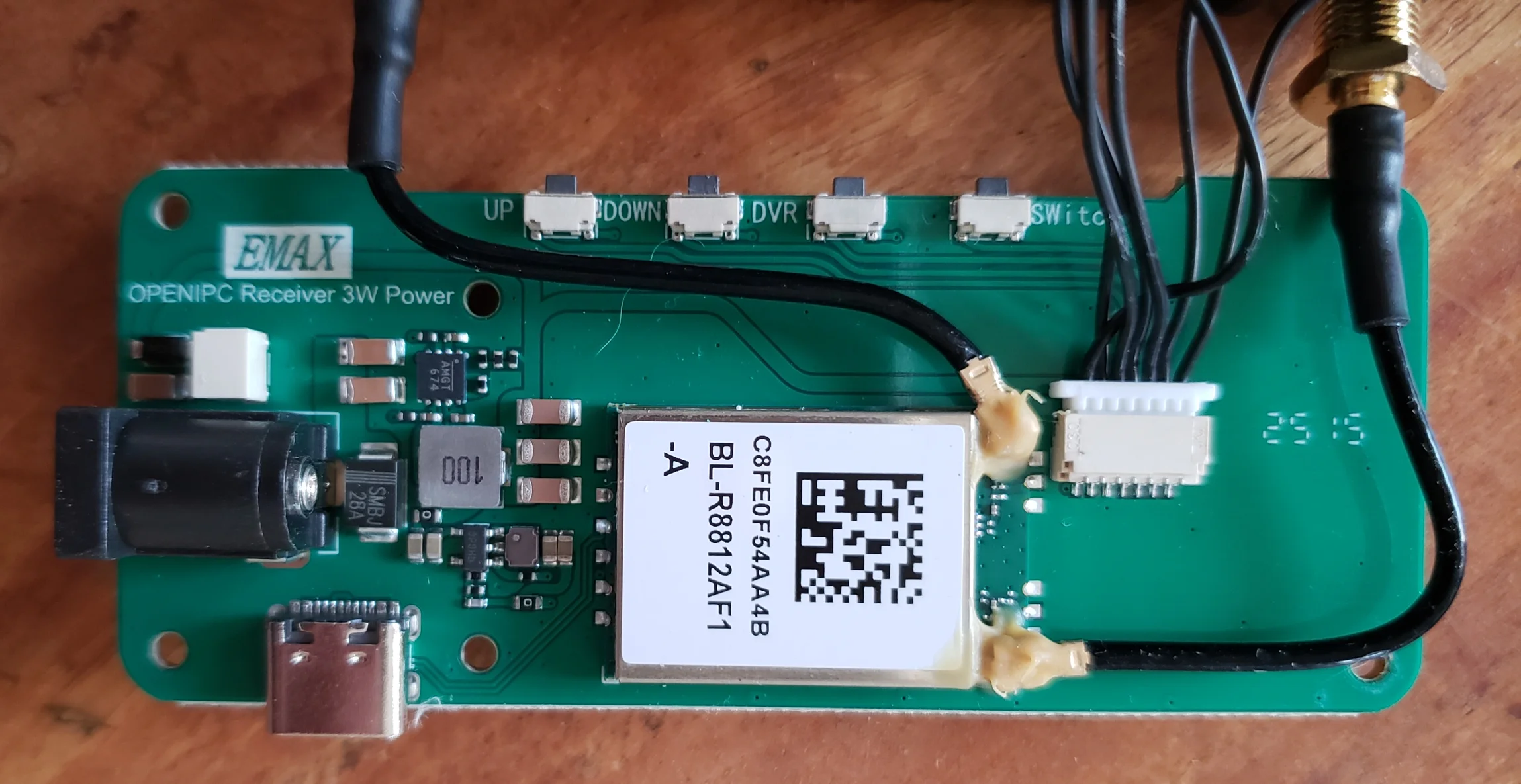
Basic setup
What you need
Goggles or a portable monitor with an HDMI input.
A 2S-6S battery with a barrel jack connector or a USB power bank
Hardware setup
Connect the bundled USB cable between the internal boards
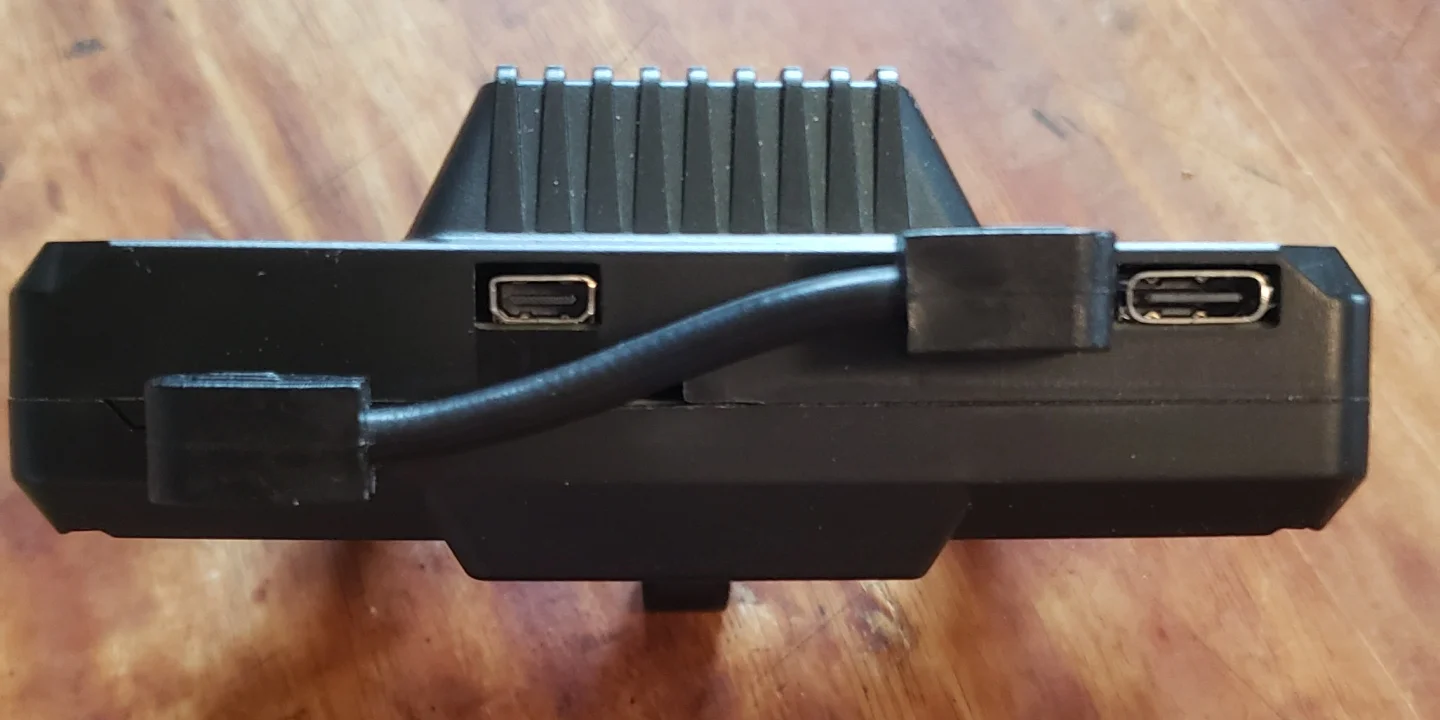
Connect the antennas to the VRX
Install the bracket on the goggles if they are Fatshark or Skyzone. For other goggles or a portable monitor, 3D-print a custom bracket or use Velcro or double-sided tape.
Connect an HDMI cable between the VRX and the goggles or monitor. The Radxa VRX uses micro-HDMI.
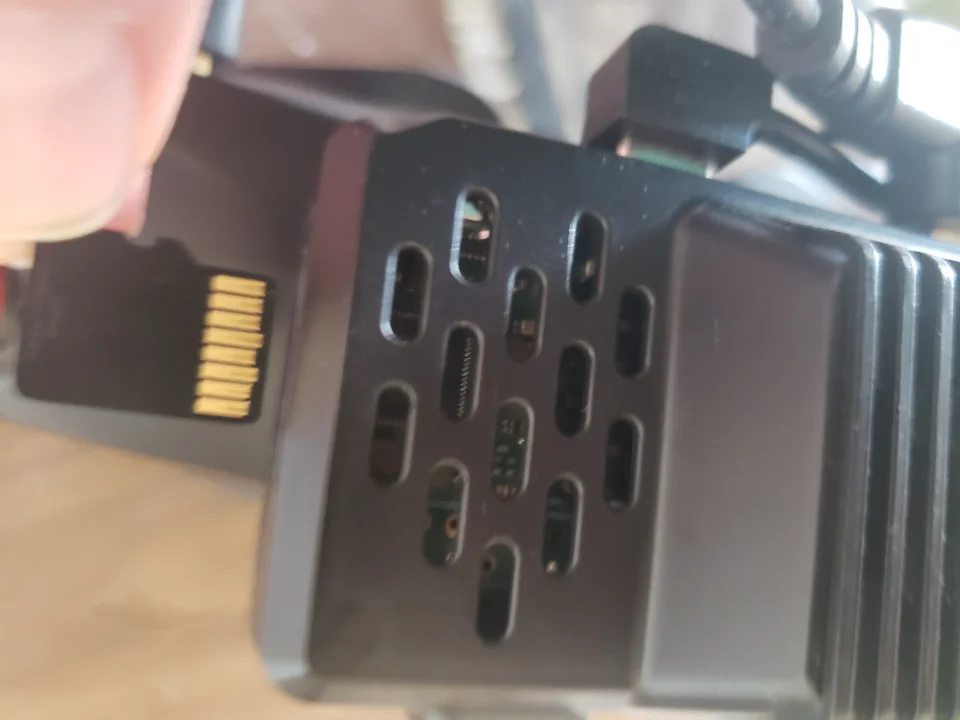
(optional) Insert a formatted micro SD card into the VRX. The slot has no auto-correction, so insert it contacts up when the fan faces up.
Stock firmware interface
The stock firmware on the internal eMMC is SBC v1.9.9 and has a simple menu and button system. 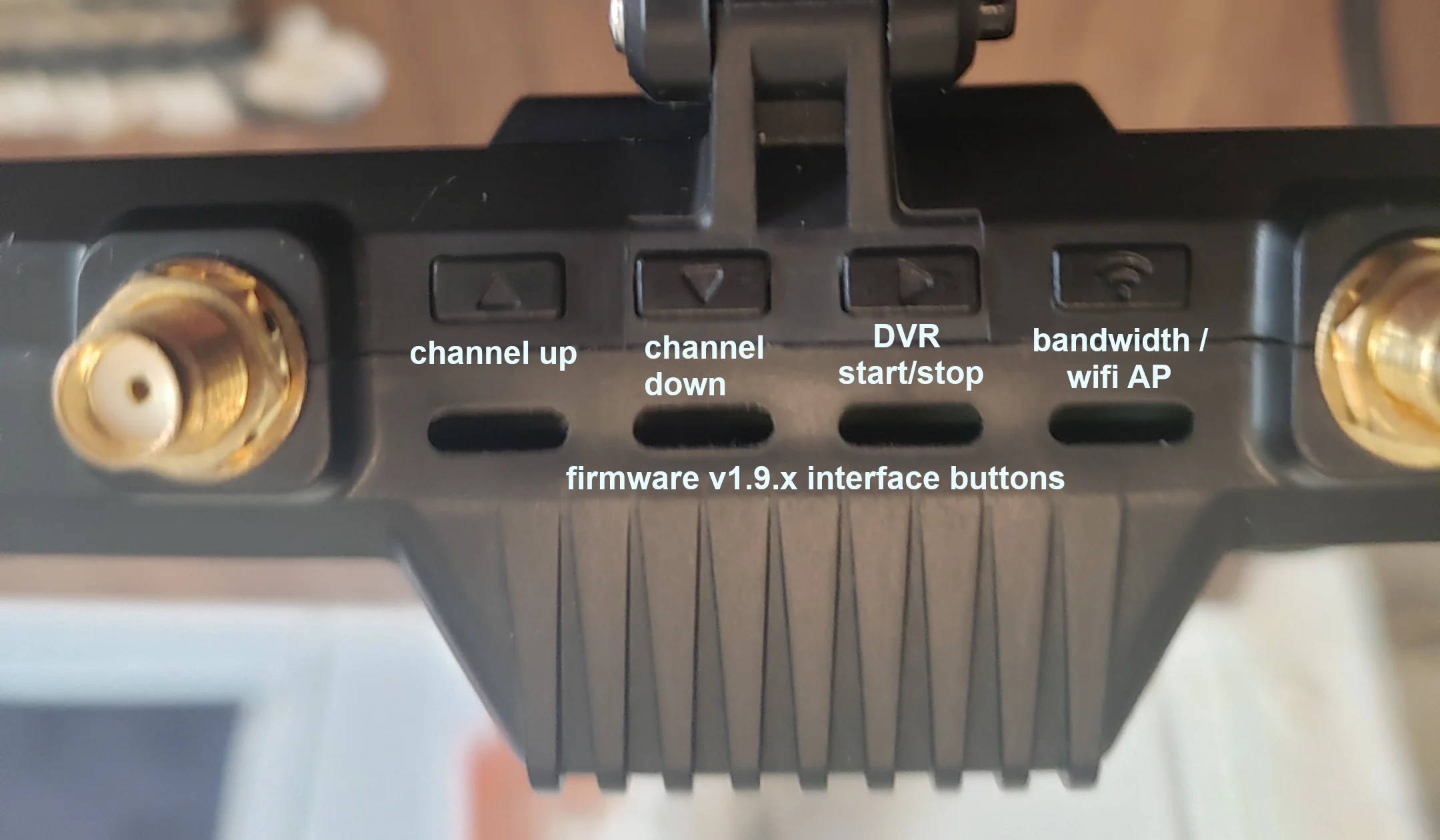
- The up and down buttons change the WiFi channel
- The side arrow starts/stops DVR recording
- The far-right "wifi" button has two functions
- a short press changes the bandwidth
- a long press enables the WiFi access point (AP). The VRX appears in your local WiFi network as SSID: RadxaGroundstation, password: radaxaopenipc
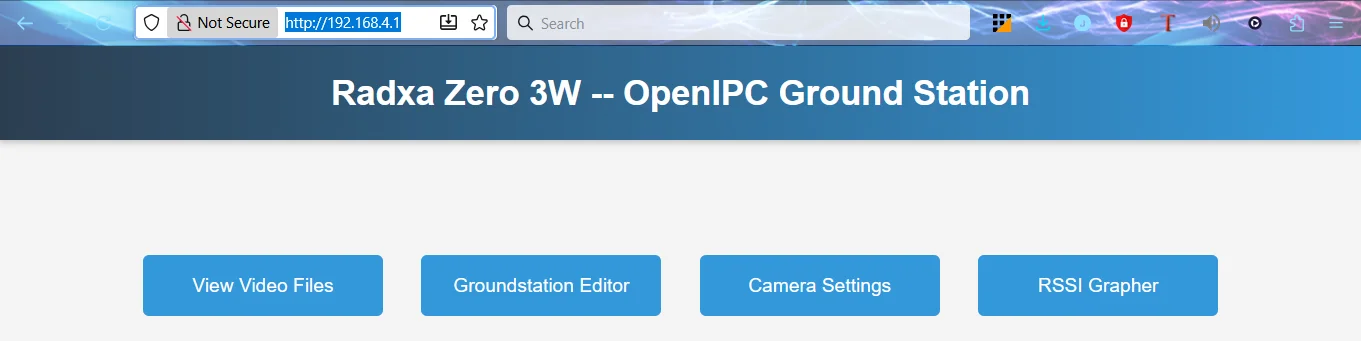
The ground station web interface is available at http://192.168.4.1/
How to get or change gs.key with firmware v1.9.9
- Insert a blank, formatted micro SD card into the VRX.
- When you first power on the VRX, the device will create a 'user' file and a 'gs.key' file.
- Connect the SD card to a PC and either replace the gs.key file so it matches your VTX, or use this gs.key on all your VTX.
- Put the SD card back into the VRX, and on the next boot it will replace the internal gs.key with the one on the SD card.
Basic setup summary
The VRX is configured with the default gs.key and should work with RunCam or Emax VTX. After the basic setup you'll have the cheapest modern digital FPV system. The manufacturer currently has no instructions for the Wyvern Link v2 hardware.
Advanced setup
It is recommended to flash the latest firmware to an SD card and boot from the SD card to get the newest features. Once a new stable firmware for flashing to the internal eMMC is available, we will update the documentation.
SBC 2.0.0 Beta2 setup for wfb-ng
Download SBC 2.0.0 Beta2 and flash it to an SD card using belenaEtcher or your favourite flashing utility. After flashing, connect the SD card to your PC again. The main /config drive will be mounted (possibly as D:) and will let you edit /config/setup.txt and the GPIO files.
Create a new GPIO button layout file /config/scripts/GPIO/Emax.yaml or edit the file /config/scripts/GPIO/Custom.yaml.
The GPIO buttons are mapped as follows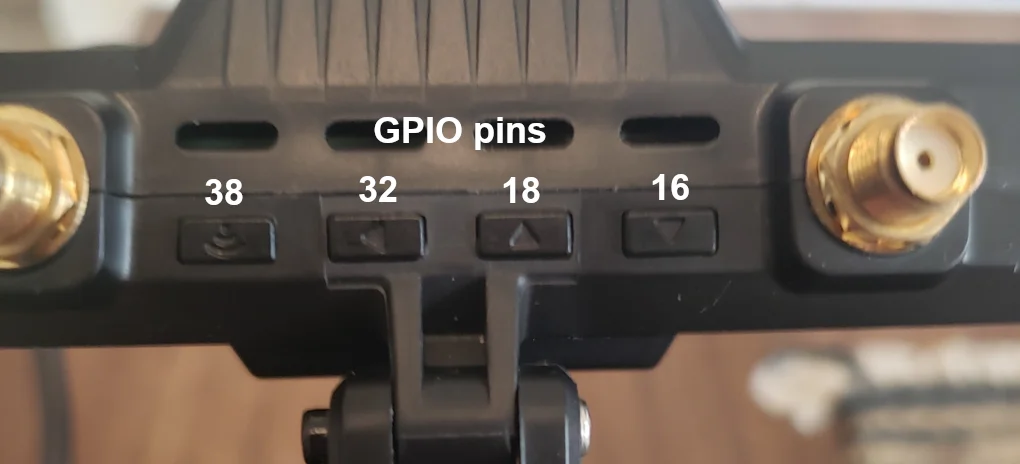
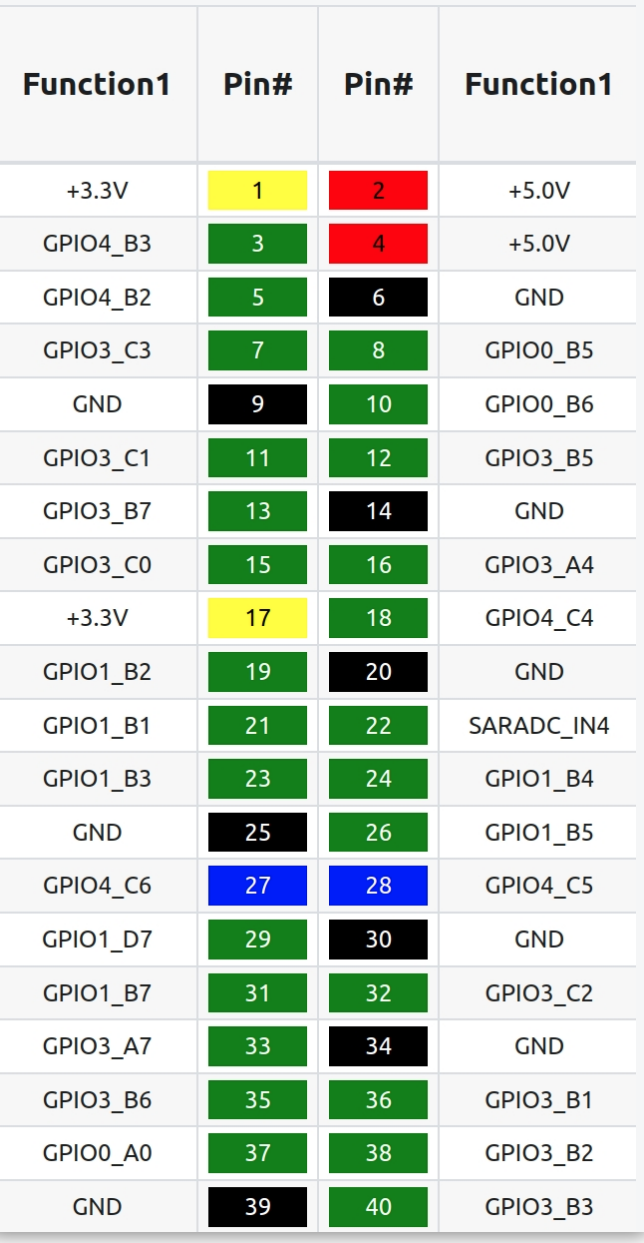
Since the Emax VRX has only 4 buttons, we need to make some choices about mapping their functions to GSMenu. Here is one possible layout with the far-left button as "center" and the 2nd button as "left". This lets you use the GSMenu keyboard and all other GSMenu functions, since right/center behave the same for most menus.
gsmenu:
  enabled: true
  gpio:
    # Emax
    left: 32
    center: 38
    up: 18
down: 16If you prefer a more traditional mapping, this may be better, but it has no center function, so we can't use the GSMenu keyboard.
gsmenu:
  enabled: true
  gpio:
    # Emax
    left: 38
    right: 32
    up: 18
down: 16If you prefer to think about the buttons looking at the VRX from the front, rather than when it's mounted on the goggles (from the back), you can swap the button order
gsmenu:
  enabled: true
  gpio:
    # Emax
    left: 32
    right: 38
    up: 16
down: 18After editing the GPIO file, change setup.txt to use the appropriate GPIO. Here is an example setup.txt when using the new Emax.yaml file
# Set screen_mode to your HDMI display's desired mode. Format WxH@fps - Common values: 1920x1080@60, 1920x1080@120, 1280x720@60, 1280x720@120
[screen mode]
screen_mode = 1920x1080@60

# Set rec-fps to the fps your camera records at. e.g. 60, 90, 120
[dvr recording]
rec_fps = 60

# Set gpio_layout. Valid values: Ruby, Bonnet, Runcam and Custom.
[gpio]
gpio_layout = Emax

# Setting osd to "ground" enables the msposd_rockchip process on the vrx side.
[msposd]
osd = air