

How to recover absolutely any Air Unit on OpenIPC?
What you'll need
- An FTDI FT232RL adapter
- A miniUSB - USB cable
- A few jumper wires
Software
Flashing steps
Open CMD or the Windows console and enter the command:
ipconfig
Find your IPv4 address.
Run Tftpd64:
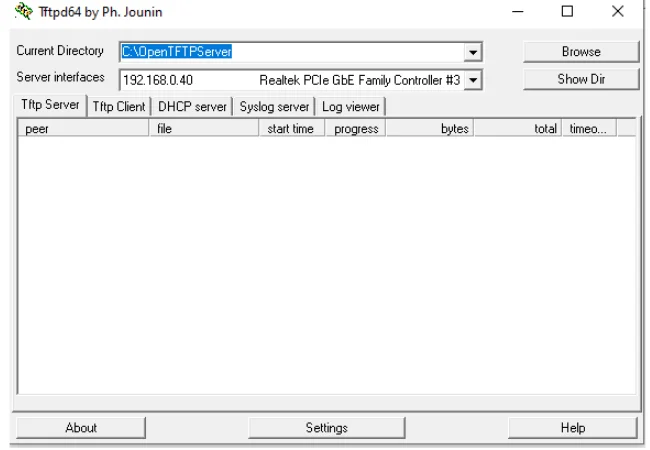
Generate a MAC address, and in the TFTP server field enter your computer's IP address.
Click Generate Instructions.
Check the FTDI connection:
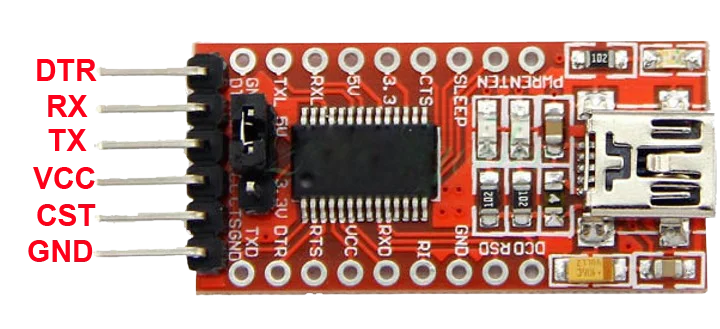
- RX → TX
- TX → RX
- GND → GND
Warning
Before powering on, make sure all UART connections are correct.
An incorrect connection can damage the device.
Tip
Find the correct UART interface according to your hardware's documentation.
Solder the FTDI outputs to the UART pins on the board.
Open Device Manager, plug in the FTDI USB and find the COM port (e.g. COM3).
Run Putty with the appropriate COM port:
putty.exe -serial COM3 -sercfg 115200,8,n,1,NA Putty window will open.
Connect power to the FTDI and to the Runcam v1.
Tip
Open Putty before powering on, so you can see the device boot log.
- If everything is connected correctly, you will see the log in Putty:
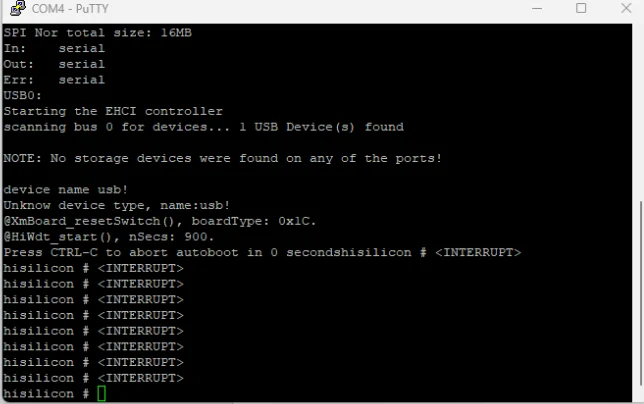
Go to the instructions page:
https://openipc.org/cameras/vendors/sigmastar/socs/ssc338qCopy the
.binfirmware file into the TFTP folder:
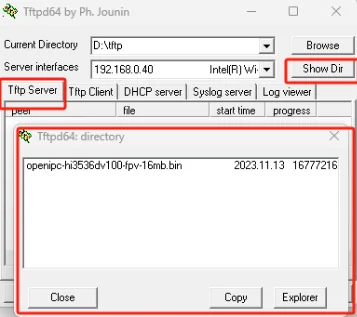
- Run the commands from the site one line at a time, do not paste everything at once:
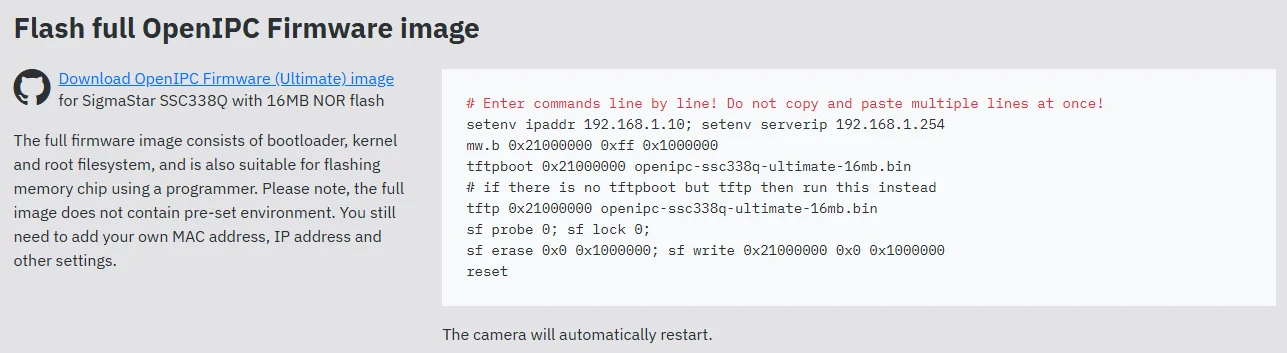
Tip
Run one line at a time, do not paste several commands at once.
- If after the third command the download does not happen — check the TFTP server settings.
Tip
Make sure a firewall or antivirus is not blocking the TFTP server.
- Example IP address configuration:
- Device IP:
192.168.0.123 - Computer IP:
192.168.0.40
- After a successful boot via UART you can flash the WiFiLink firmware via the Multiconfigurator